A milestone marks a checkpoint in a project, such as “Design approved.” It can have a date, but you can leave it undated while planning.
Plan a milestone
- Open the project’s Work tab and choose the Timeline layout. Add a milestone.
- Give it a name and set a date if you know it.
- Add the action items your team needs to finish before that checkpoint. Subtasks stay inside their parent action item.
- If the client should see the schedule and milestones, check schedule sharing in the project setup Share step. Internal milestones stay within your team. See Share work with clients.
For a website redesign, add a “Design approved” milestone and connect the “Prepare desktop layouts” action item to it. Open the action item’s Details, choose its Project, then select the Milestone. See Action items.
Use Open editor on the Timeline to plan dates. The schedule issue chip identifies work that needs attention. If you choose a reschedule, review the proposed date changes before applying them.
Request a teammate’s approval
- Open the milestone from Work and find Approval.
- Select Request approval.
- Choose an eligible teammate under Team.
For example, ask your creative director to approve an internal design checkpoint before sharing it with the client. Internal and Team milestones show Milestone not visible to client in the Client section. A teammate needs access to the milestone and permission to edit its project to appear in Team.
For client approval, use a shared milestone and follow Milestone sign-off.
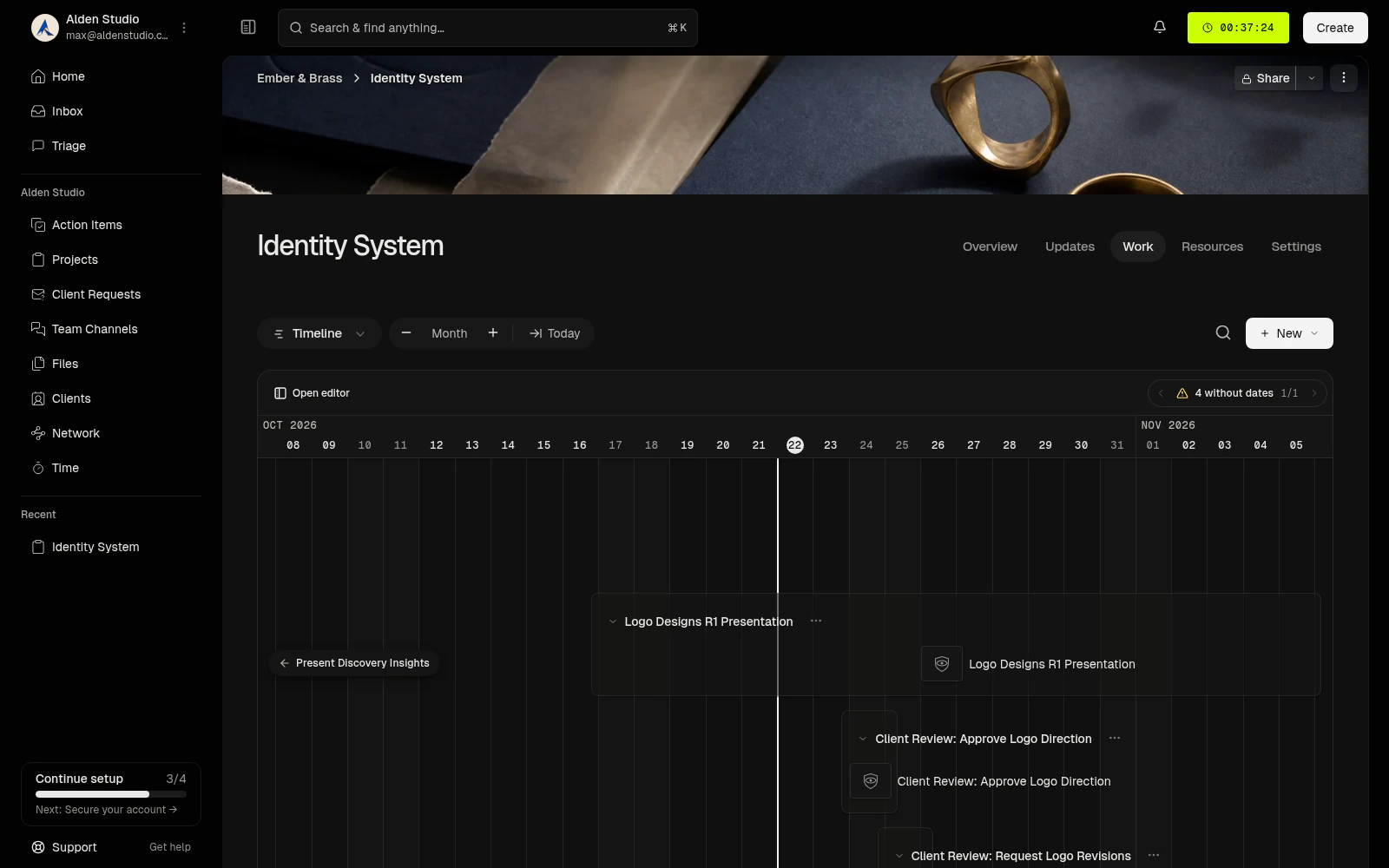
The Timeline places dated checkpoints on the calendar. Select the image to open it at full size.
Find your work in My Week
On Home, find My Week for this week’s dated work you created or are assigned, plus project milestones and stages. Select an action item to open its details. Select a milestone or stage marker to open its project.