An action item is a task with a clear owner, such as “Send the revised contract.” It can belong to a project or stand on its own.
Steps
- Open Action Items or a project and create an action item.
- Give it a short title. Add an assignee and due date if you know them.
- Add details or related files so the person doing the work has what they need.
- If the task belongs to a project checkpoint, open its Details, set its Project, then choose Milestone or Add Milestone.
You can find work assigned to you in My Week. If the action item fulfills a client request, attach work to the accepted request so your team can track the connection.
Move work across the project board
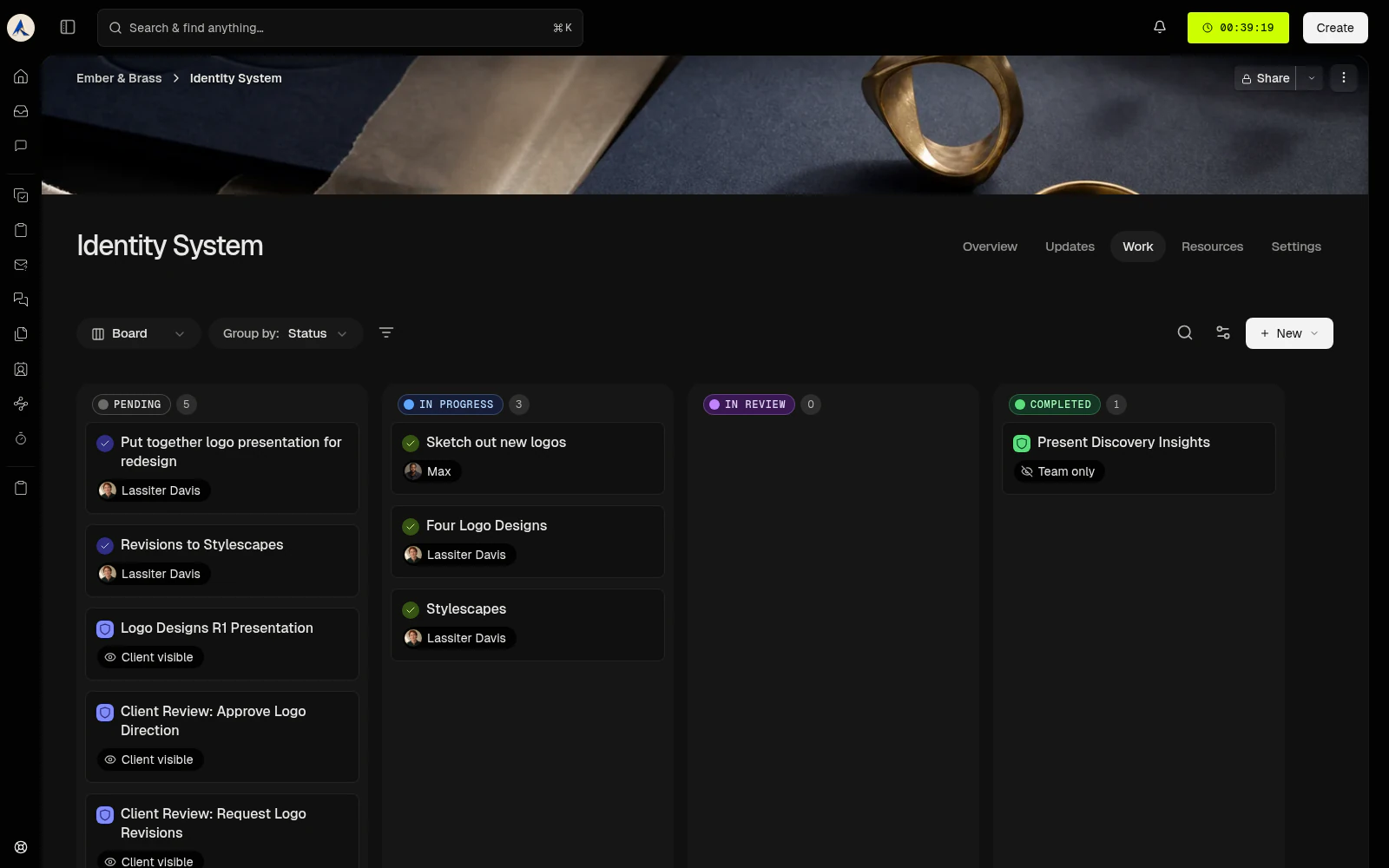
This populated project shows action items and milestones grouped by status. Select the image to open it at full size.
- Open a project’s Work tab.
- Choose the Board layout and group by Status.
- Drag an action item from Pending to In Progress when work starts.
- After the save succeeds, check that the card appears in its new column.
For example, move “Prepare desktop layouts” into In Progress while the related “Design approved” milestone stays Pending. Milestones move only between Pending and Completed.
To move a card with the keyboard, focus it and press Space, use an arrow key to choose a column, then press Space again. If a transition is unavailable, Watson shows an error and keeps the current status. You need permission to edit the work. Archived projects are read-only.
The Work Table, Board, and Timeline show action items and milestones. Open an action item to see its subtasks.