Use the timer to record work as you do it, or add a time entry after the work is complete. Open Time in the Studio sidebar to review your entries.
Record work with the timer
- Select Start timer in the top bar to open the tracker.
- Choose the project or action item you are working on.
- Add a description, such as “Revise homepage layouts”.
- Set Billable time for work you intend to bill.
- Select Start Timer. The top bar shows the running timer.
- When you finish, open the tracker and select Stop & Save.
You can run one timer at a time across your workspaces. If another timer is running, Watson asks you to stop it before starting the new one. Changing workspaces alone does not stop the timer.
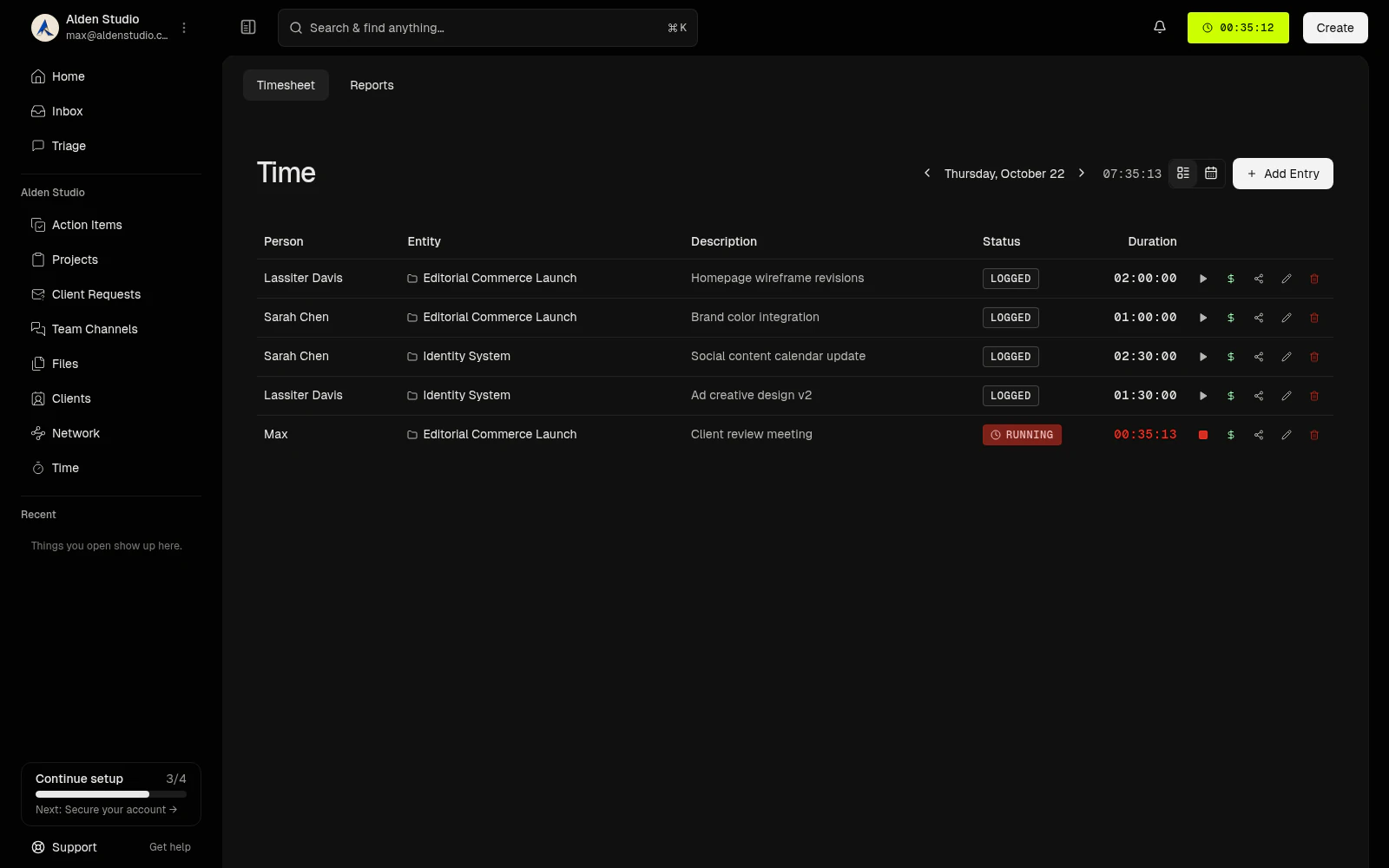
The Timesheet lists the person, project, description, status, and duration for each entry. Select an image in this guide to open it at full size.
Add time after the work
- Open Time → Timesheet and select Add Entry.
- Choose the project or action item and enter a Description.
- Choose Duration and set the Start date and time.
- Enter the duration, such as
1h 30m. You can also enter1:30or1.5for ninety minutes. - Set Billable as needed, then select Add Entry.
For example, record a ninety-minute design session that started at 10:00 with the description “Revise homepage layouts”. To enter an explicit start and end instead, choose Time Range and set When to 10:00 through 11:30 on that day.
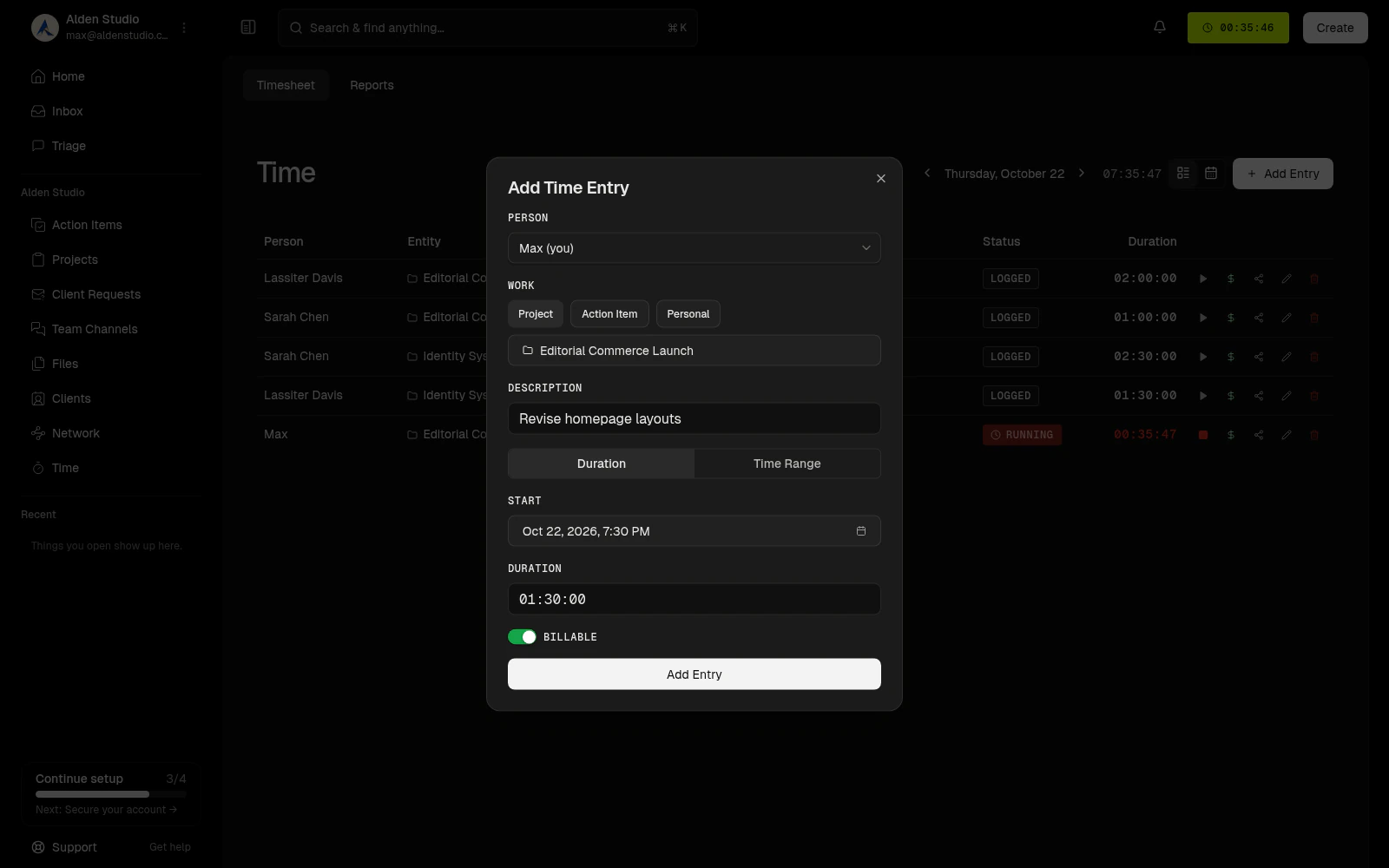
The example form shows a ninety-minute entry before saving.
Check your timesheet
- Open Time → Timesheet.
- Choose Daily review or Weekly review.
- Use the date picker or the previous and next controls to find the day or week.
- Open an entry to correct its details, then select Update Entry.
Today or This week returns to the current period when you are looking at an earlier or later one. In Weekly review, use Group by to organize entries by project, action item, or person.
Watson rejects overlapping entries for the same person. If a running timer blocks a later entry, stop it first. For recorded periods that overlap, correct the start, end, or duration so the entries do not overlap.