Use Design Studio to give your workspace and client Portal your agency’s branding. You need permission to edit the workspace to save changes.
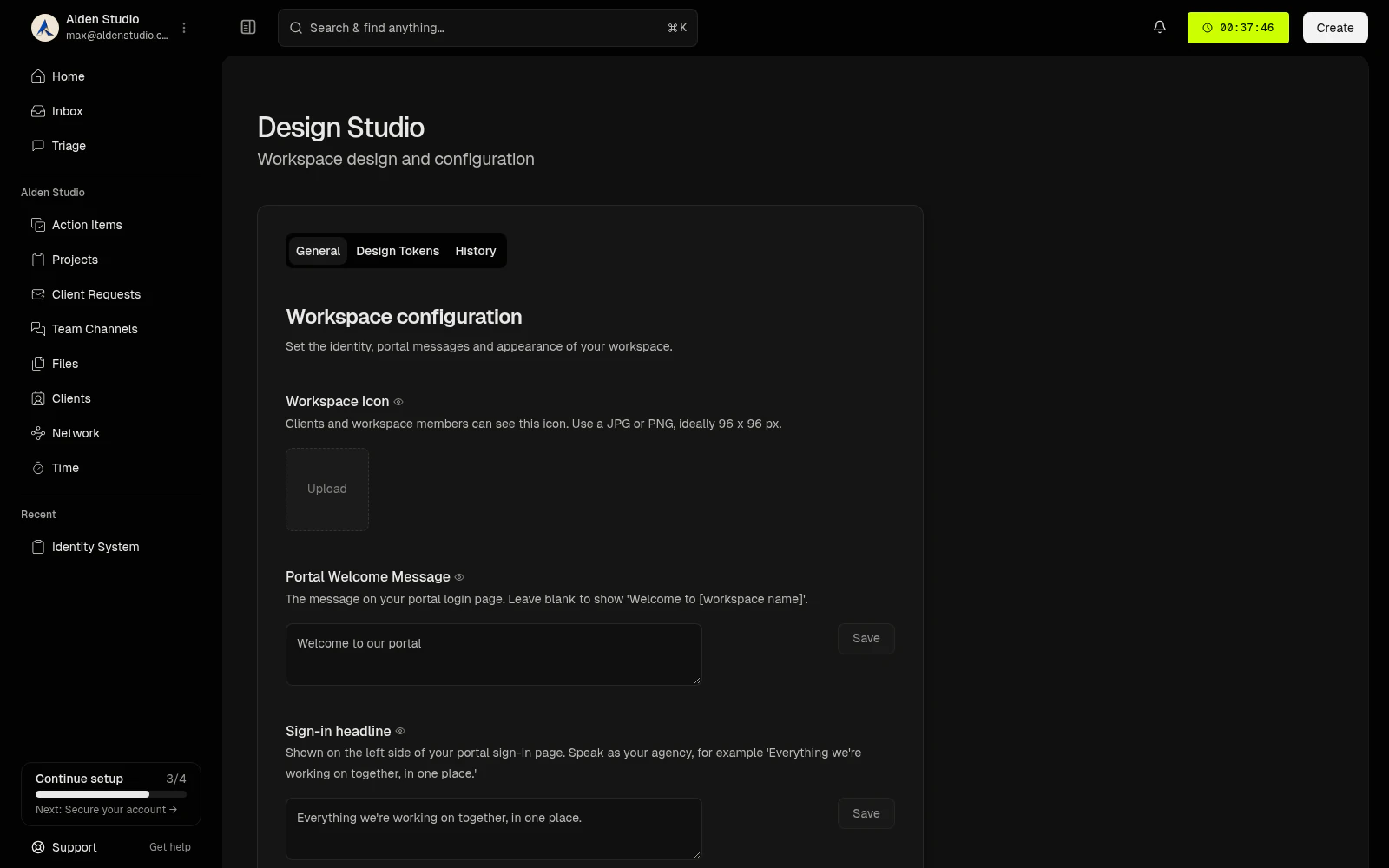
The General tab groups the workspace identity and Portal copy. Select an image in this guide to open it at full size.
Set your icon and Portal copy
- Open the workspace menu and select Design Studio, or select it in Workspace Settings.
- In General, choose your Workspace Icon.
- Enter a Portal Welcome Message and select its Save button. Leave it blank to use the workspace name in the default welcome message.
- Set the Sign-in headline and Invite headline, saving each field you change.
- To add a Sign-in image, choose a wide JPG or PNG. The headline stays white over the image.
- Choose Light or Dark under Workspace Appearance. This choice saves immediately.
For example, use “Review the work for your next launch” as the sign-in headline. For the invite headline, enter {firstName}, welcome to your {clientName} portal. You can also use {inviterName} in the invite headline.
Image selections upload when you choose them. Text and color edits need their own Save action.
Set brand colors
- Open Design Tokens.
- Choose Brand Color and select its Save button.
- Choose Button Text Color and select its Save button.
Choose a button text color that remains readable against your brand color. Switching tabs keeps unsaved edits, but does not save them.
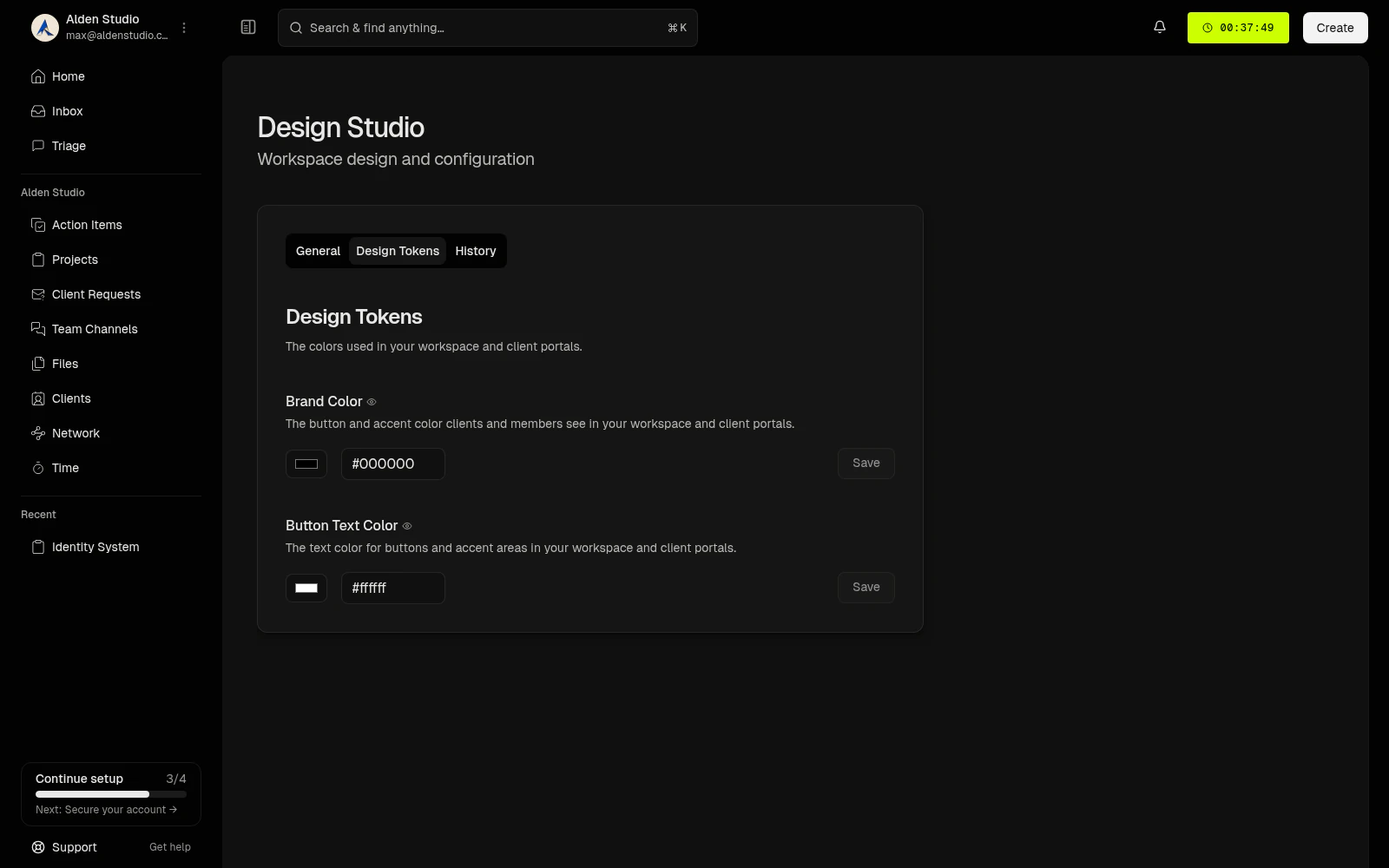
Each color has its own Save button.
Check saved changes
Open History to see recent saved changes, who made them, and their previous and new values. History starts when change tracking was added. Earlier branding edits do not appear.